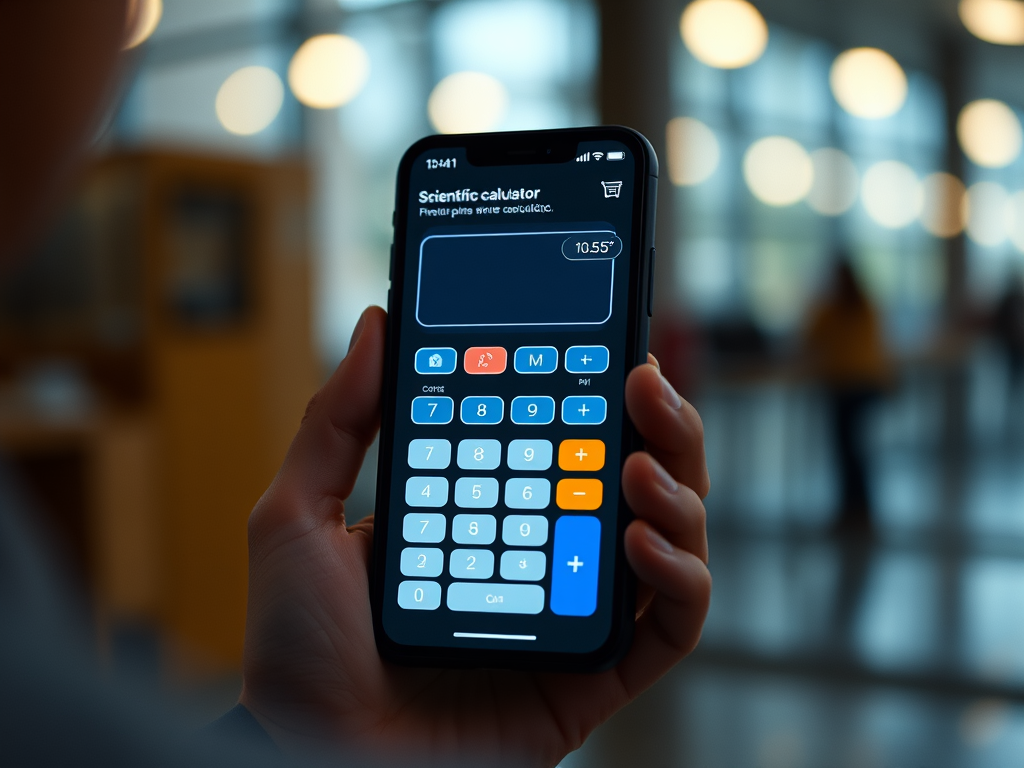
In this blog, we are exploring Scientific calculator application using Webivew and HTTP Server.

Getting started
Here, we would use HTTP Server running in background while application is running and open a scientific calculator html file in Webview.
Add below project dependencies in pubspec.yaml file.
dependencies:
     mime: ^1.0.4
     webview_flutter: ^4.2.1
Implement a class Server. Here is the Server class code.
class Server {
  HttpServer? _server;

  int _port = 12121;

  Server({int port = 12121}) {
    _port = port;
  }

  // Closes the server.
  Future<void> close() async {
    if (_server != null) {
      await _server!.close(force: true);
      if (kDebugMode) {
        print('Server running on http://localhost:$_port closed');
      }
      _server = null;
    }
  }

  Future<void> start() async {
    if (_server != null) {
      throw Exception('Server already started on http://localhost:$_port');
    }

    var completer = Completer();
    runZoned(() {
      HttpServer.bind('0.0.0.0', _port, shared: true).then((server) {
        if (kDebugMode) {
          print('Server running on http://localhost:$_port');
        }

        _server = server;

        server.listen((HttpRequest request) async {
          List<int> body = [];
          var path = request.requestedUri.path;
          if (kDebugMode) {
            print("path = $path");
          }
          path = (path.startsWith('/')) ? path.substring(1) : path;
          path += (path.endsWith('/')) ? 'index.html' : '';

          try {
            body = (await rootBundle.load(path)).buffer.asUint8List();
          } catch (e) {
            if (kDebugMode) {
              print(e.toString());
            }
            request.response.close();
            return;
          }

          var contentType = ['text', 'html'];
          // print("Extension= ${path.substring(path.lastIndexOf('.') + 1)}");
          // if (path.substring(path.lastIndexOf('.') + 1) != "html") {
          //   contentType = ['text', 'plain'];
          // }
          if (!request.requestedUri.path.endsWith('/') &&
              request.requestedUri.pathSegments.isNotEmpty) {
            var mimeType =
                lookupMimeType(request.requestedUri.path, headerBytes: body);
            if (mimeType != null) {
              contentType = mimeType.split('/');
            }
          }

          request.response.headers.contentType =
              ContentType(contentType[0], contentType[1], charset: 'utf-8');
          request.response.add(body);
          request.response.close();
        });

        completer.complete();
      });
    }, onError: (e, stackTrace) => print('Error: $e $stackTrace'));

    return completer.future;
  }
}
Now, it’s time to implement ScientificCalculatorScreen class using WebView widget and load scientific calculator HTML page through Webcontroller. First part is to initialise Server class and start HTTP server. Second part is to load scientific calculator html file in Webview through Webcontroller.
class ScientificCalculatorScreen extends StatefulWidget {
  const ScientificCalculatorScreen({Key? key}) : super(key: key);

  @override
  State<ScientificCalculatorScreen> createState() =>
      _ScientificCalculatorScreenState();
}

class _ScientificCalculatorScreenState
    extends State<ScientificCalculatorScreen> {
  final Server _server = Server();
  late WebViewController _controller;

  @override
  void initState() {
    super.initState();
    _server.start();

    PlatformWebViewControllerCreationParams params =
        const PlatformWebViewControllerCreationParams();

    final WebViewController controller =
        WebViewController.fromPlatformCreationParams(params);

    controller
      ..setJavaScriptMode(JavaScriptMode.unrestricted)
      ..setBackgroundColor(const Color(0x00000000))
      ..enableZoom(false)
      ..setNavigationDelegate(
        NavigationDelegate(
          onProgress: (int progress) {
            //debugPrint('WebView is loading (progress : $progress%)');
          },
          onPageStarted: (String url) {
            //debugPrint('Page started loading: $url');
          },
          onPageFinished: (String url) {
            //debugPrint('Page finished loading: $url');
          },
          onWebResourceError: (WebResourceError error) {},
          onNavigationRequest: (NavigationRequest request) {
            //debugPrint('allowing navigation to ${request.url}');
            return NavigationDecision.navigate;
          },
          onUrlChange: (UrlChange change) {
            //debugPrint('url change to ${change.url}');
          },
        ),
      )
      ..addJavaScriptChannel(
        'Toaster',
        onMessageReceived: (JavaScriptMessage message) {
          ScaffoldMessenger.of(context).showSnackBar(
            SnackBar(content: Text(message.message)),
          );
        },
      )
      ..loadRequest(
          Uri.parse('http://localhost:12121/assets/html/calculator.html'));

    _controller = controller;
  }

  @override
  void dispose() {
    _server.close();
    super.dispose();
  }

  @override
  Widget build(BuildContext context) {
    return Scaffold(
      appBar: AppBar(
        title: const Text("Scientific Calculator"),
        centerTitle: true,
      ),
      body: bodySection(),
    );
  }

  Widget bodySection() {
    return SizedBox(
      height: 550.h,
      child: Center(
        child: WebViewWidget(
          controller: _controller,
        ),
      ),
    );
  }
}
It’s time to build and run the application.
Here is the GitHub link of source code.



Leave a Reply